Background remover
Automatic and free, and your photo never leaves your device.
JPG, PNG, WebP, HEIC or AVIF, up to 20 MB. You can choose up to 10 images at once.
Your image stays on your device.
Clean edges, made on your device
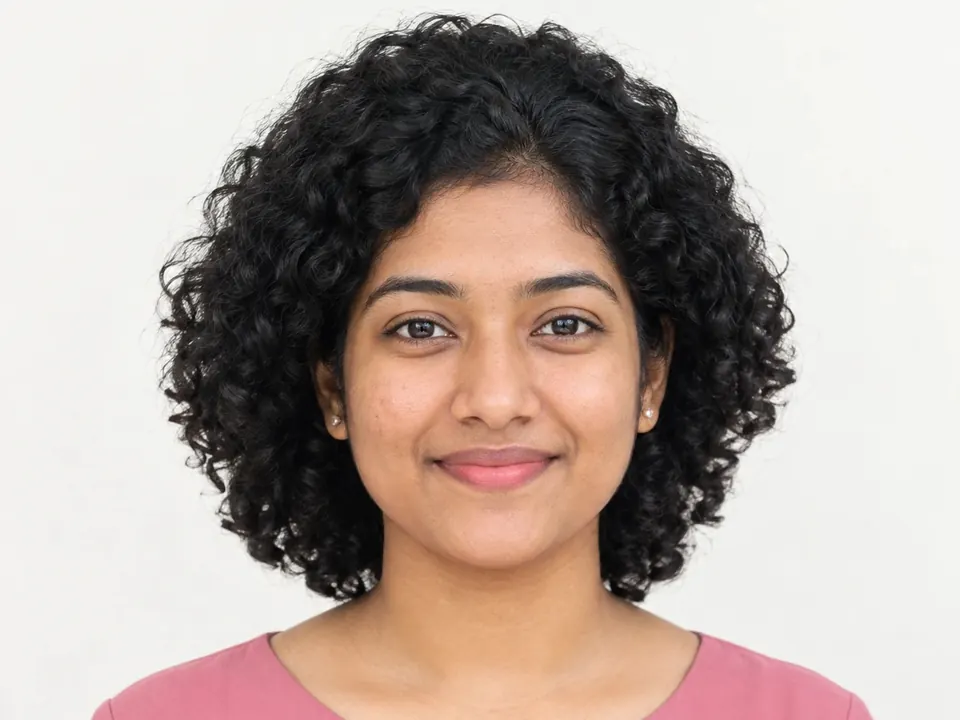
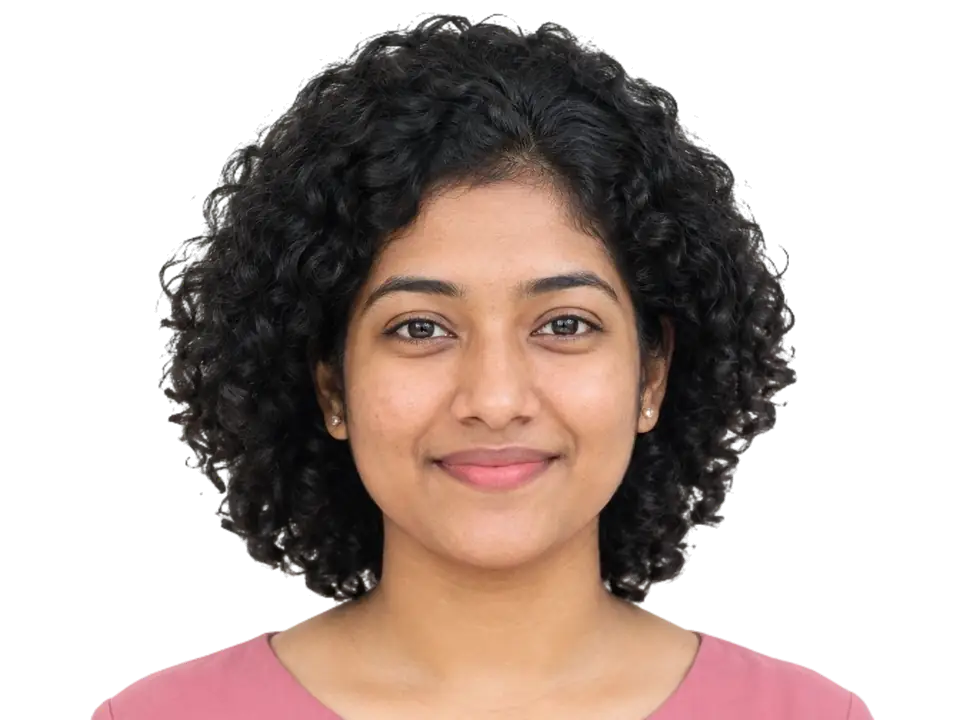
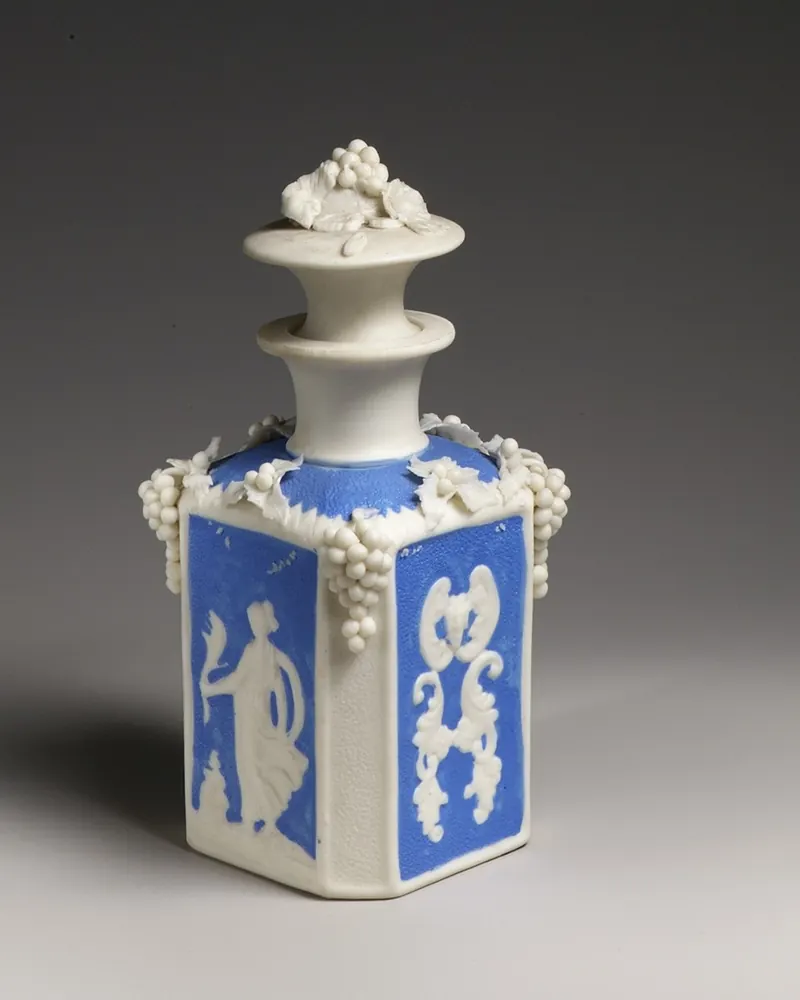
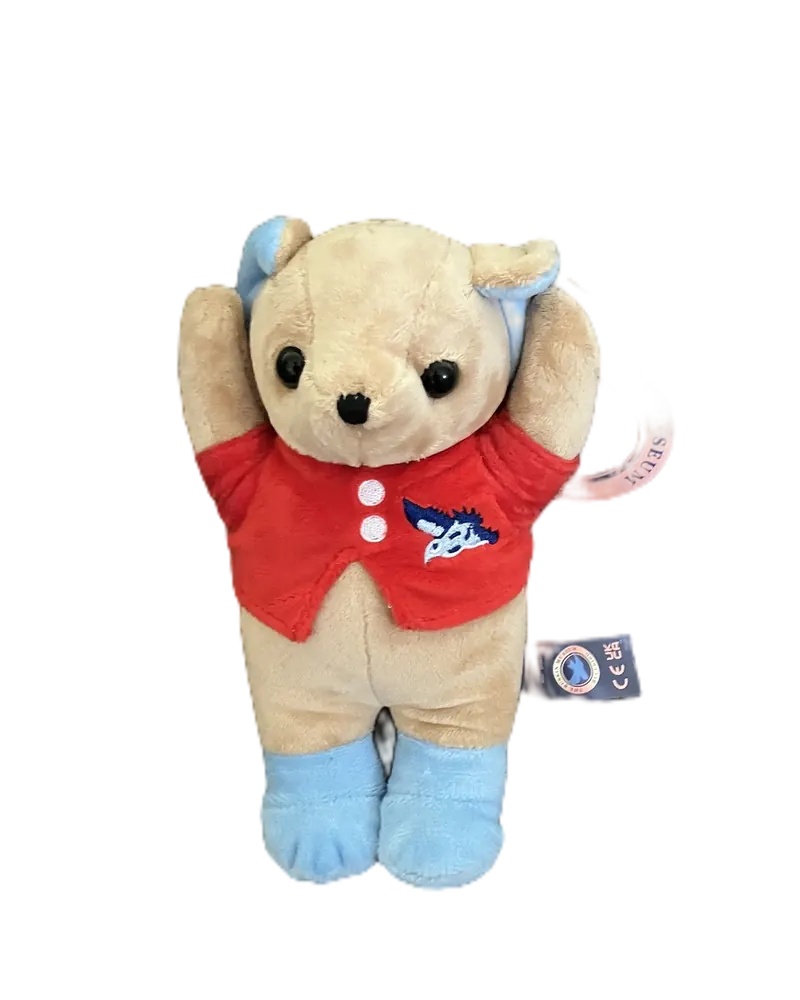
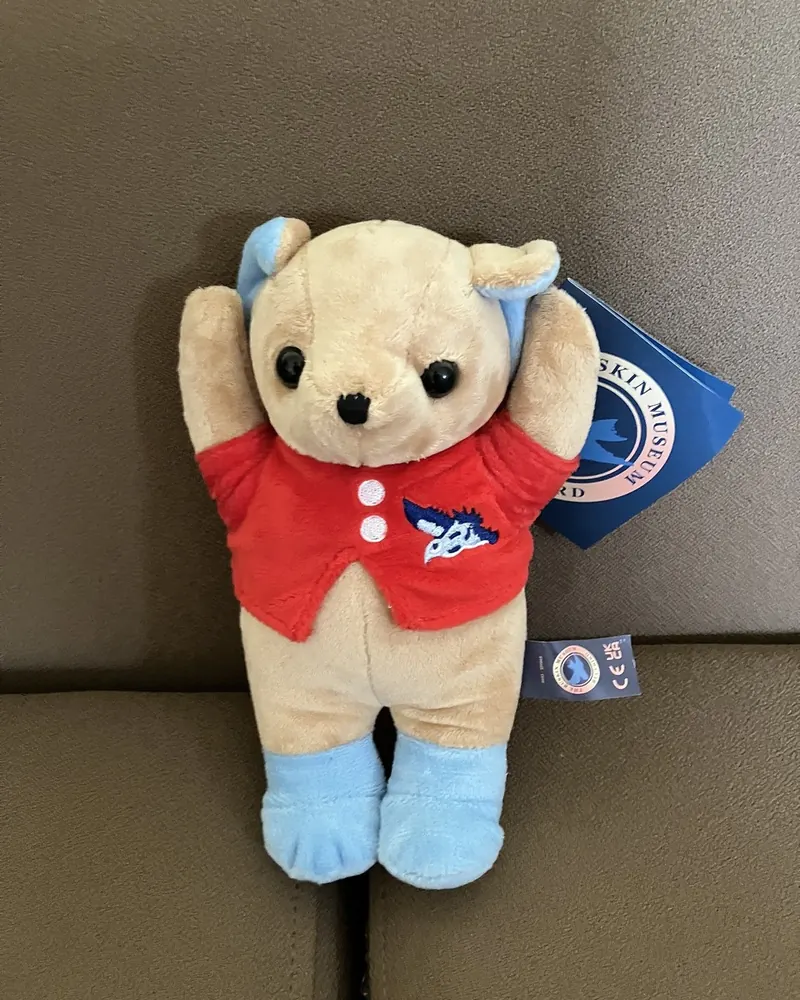
Every picture here was cut out by ChobiKit in a browser, the way yours will be. Drag the line to compare.

How to use it
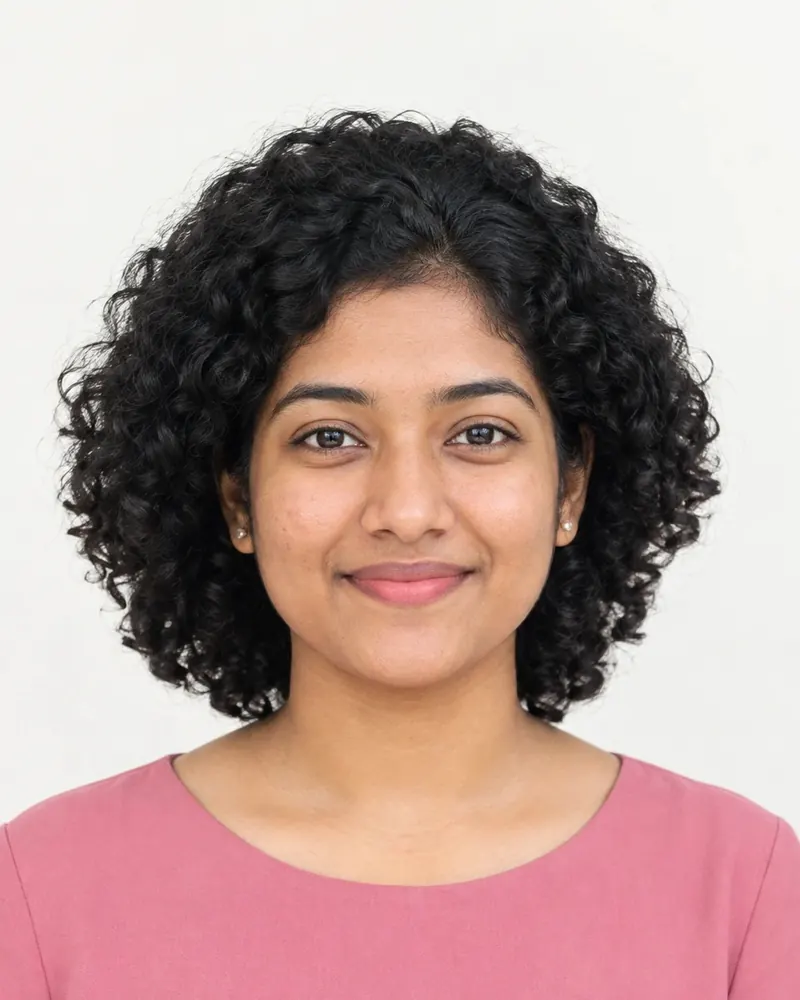
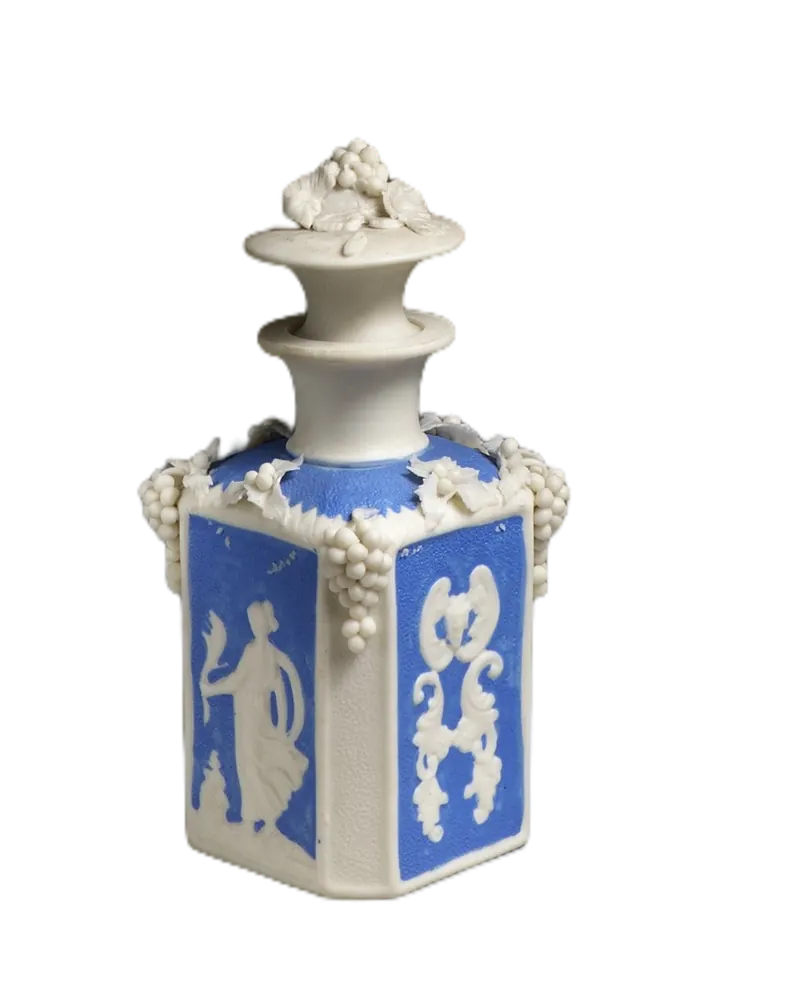
Choose a photo of a person, a product or anything else.
The background comes off by itself. Then pick transparent, white, a colour or a gradient.
Crop it if you like, then download it.
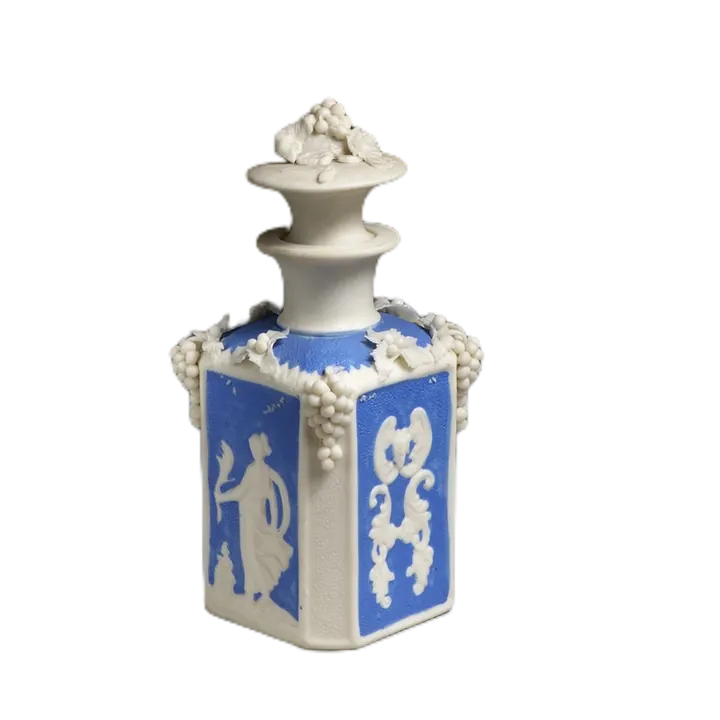
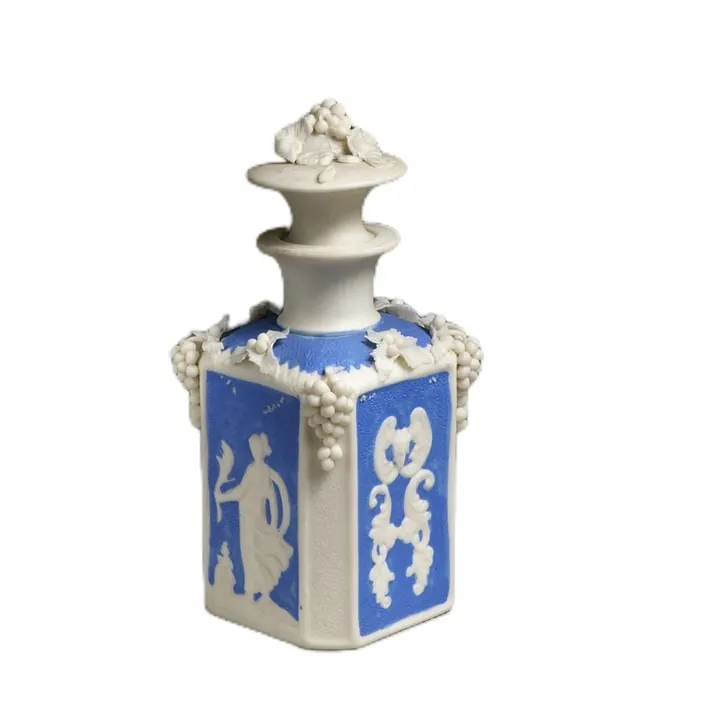
One photo, any background
Take the background out of a photo of a person or a thing, then put a colour or gradient behind it if you like. It all happens in your browser, so your photo never leaves your device.
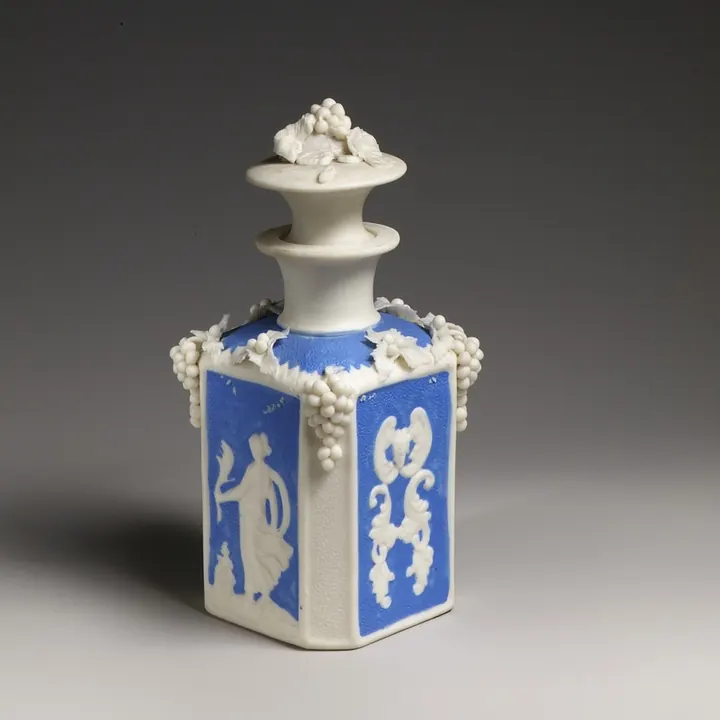
The photo as taken
Transparent, for designs and slides
White, for forms and CVs
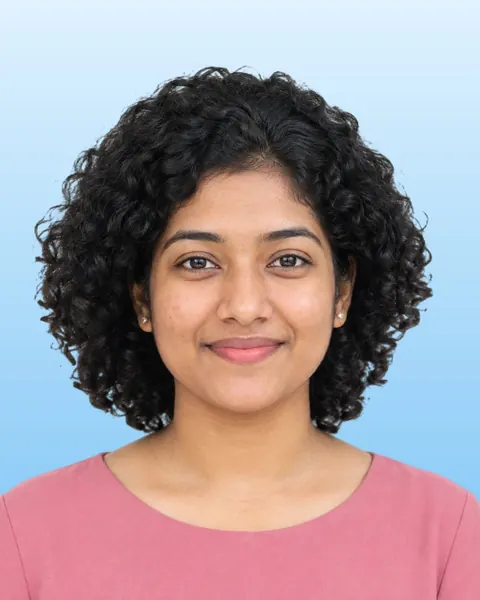
A colour or gradient, for profiles
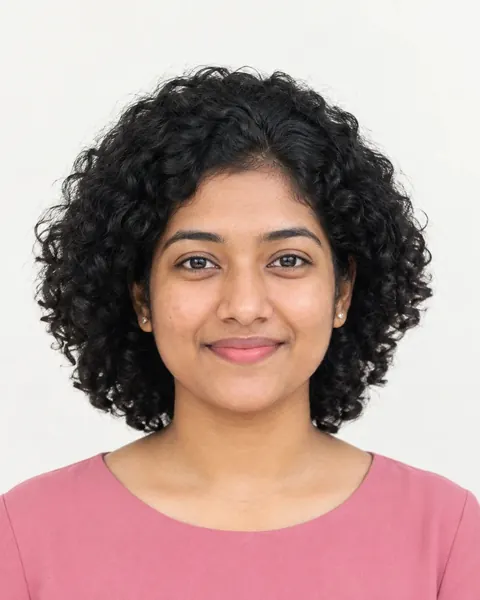

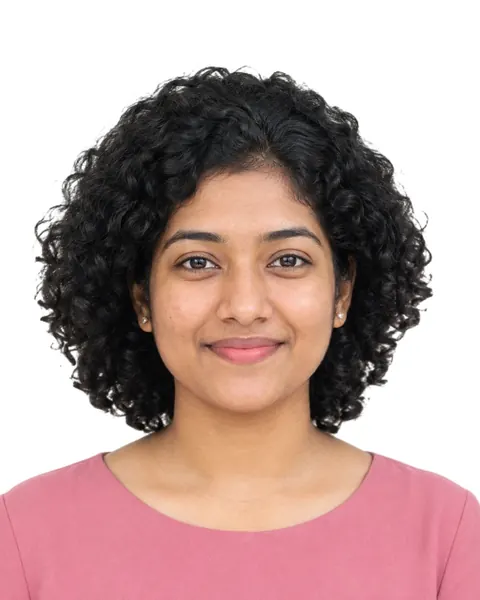
What you can do
Make the background transparent
Keep only the subject on a see-through background, saved as PNG, for designs, documents and slides.
Put white behind it
A clean white background, saved as JPG: ready for forms, CVs, profiles and shops.
Choose a colour or a gradient
Pick any colour, or one of eight soft gradients such as Sky, Studio or Sunset.
Crop to a shape
Crop the result to a square, 4:3, 16:9 or any shape, right after removing the background.
Free, private, no watermark
Everything runs in your browser. Nothing is uploaded, and the result has no watermark.
Good photos to start from
- One clear subject: a person, or a single thing such as a product, a pet or a toy.
- The subject clearly apart from the background, not the same colour as it.
- Even light, without a strong shadow on the wall or table behind.
- A photo that is at least a few hundred pixels across.
How it works
ChobiKit uses two open-source models. For a person it uses MODNet, trained to find people and to tell hair and edges apart from what is behind them. For an object it uses U²-Net, trained to find the main subject of any picture. Your browser runs them on your own phone or computer: each model comes from ChobiKit once and your browser keeps it, while your photo stays with you.
Along the edge, the subject's colours are worked out without the old background, so a light wall doesn't leave a pale outline on a dark new background.
When to remove a background
- A profile picture on a clean background.
- A CV or job application photo on white.
- A product photo on white or a soft gradient for an online shop.
- A cut-out for a poster, slide or design.
- A photo for a form that asks for a plain background, before you resize it to the form's size.
Frequently asked questions
How do I remove the background from a photo?
Choose a photo: the background comes off by itself (choose Object for things other than people). Then pick transparent, white, a colour or a gradient, crop it if you like, and download.
Is it really free?
Yes. There is no sign-up, no watermark and no limit on how many photos you do.
Is my photo uploaded?
No. The background remover runs inside your browser. The first time, your browser downloads the remover itself; your photo is never sent anywhere.
What kind of photos does it work on?
Choose Person for photos of people: portraits, selfies and ID photos. Choose Object for anything else, such as products, animals, toys and drawings. Each uses a model made for that kind of picture, and either works best when the subject stands out from the background.
How do I make the background transparent?
Choose Transparent. The photo is saved as a PNG, which keeps the see-through background.
Can I put a white, coloured or gradient background behind it?
Yes. Choose White, or Colour and pick any colour, or Gradient and pick one of eight soft backdrops. The photo is then saved as a JPG.
Why is it slow the first time?
The first time, your browser downloads the background remover: about 15 MB, and about 4 MB more for Object. It is kept afterwards, so later photos start quickly. On a phone with little memory, a photo can take up to a minute.
Can I crop the result?
Yes. Once the background is removed, choose a shape such as 1:1 or 4:3, or crop freely, and move the box over the part you want. The download is cropped to the box.