Remove white background
Automatic and free, and your photo never leaves your device.
Clean edges, made on your device
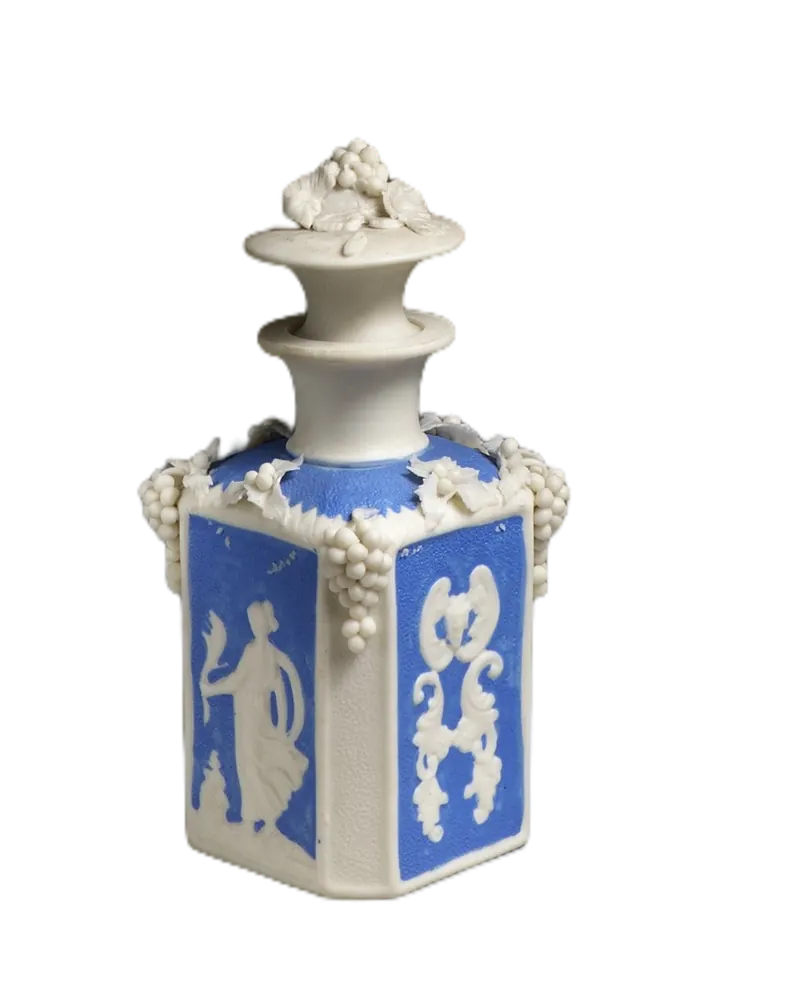
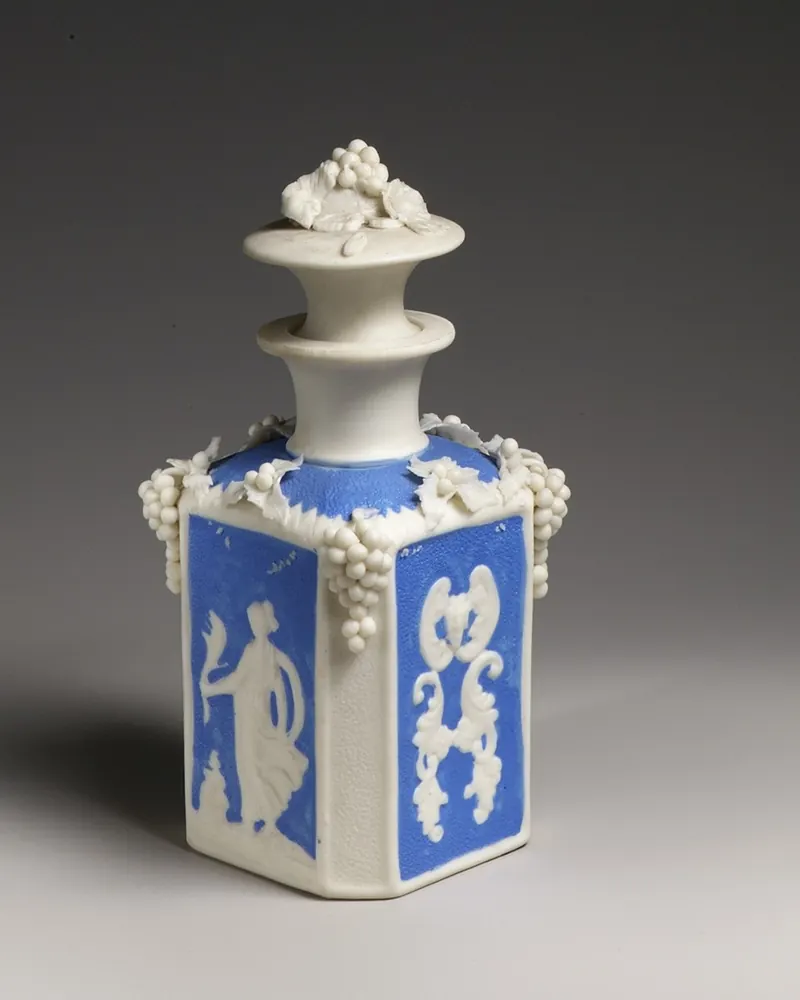
Every picture here was cut out by ChobiKit in a browser, the way yours will be. Drag the line to compare.




How to use it
Choose a photo of a person, a product or anything else.
The background comes off by itself. Then pick transparent, white, a colour or a gradient.
Crop it if you like, then download it.
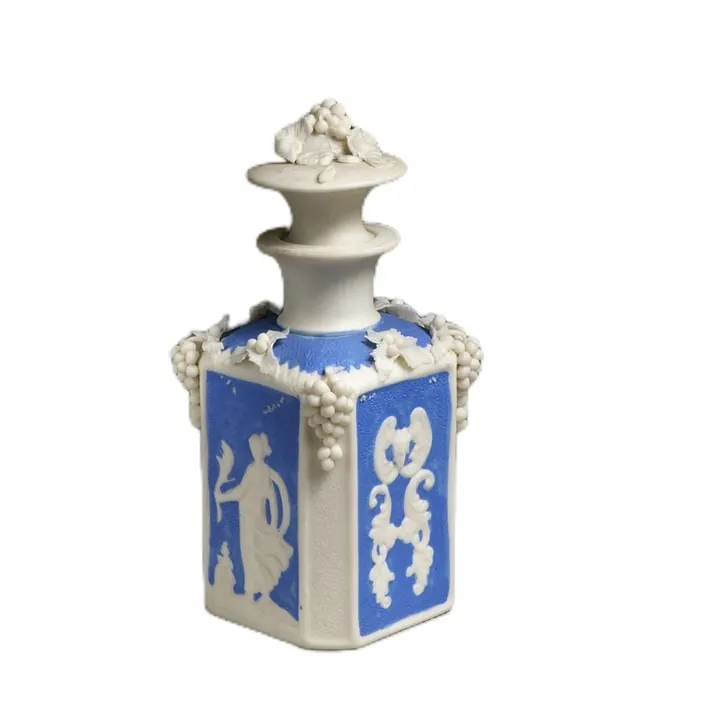
One photo, any background
Take the white, or any one plain colour, out from behind a logo, icon or drawing. The result is a transparent PNG with smooth edges, made in your browser.
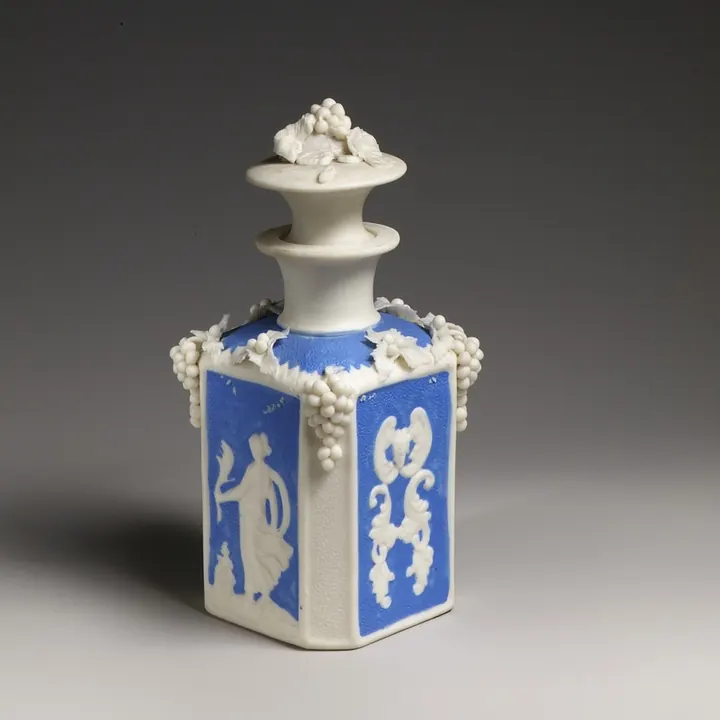
The photo as taken
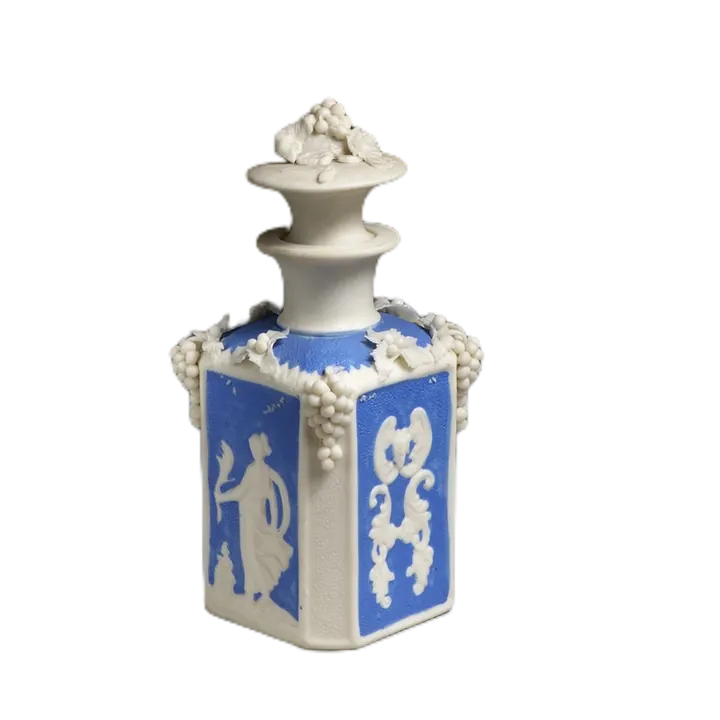
Transparent, for designs and slides
White, for forms and CVs
A colour or gradient, for profiles




How the white is taken away
The colour around the picture's edge is the background: white, or any one plain colour. It is cleared from the edges inward, up to the picture.
Along the outline, a pixel that is half picture and half white becomes half see-through, with the white taken out of its colour. So the edge stays smooth, without a pale rim on a dark page.
Logo is chosen on this page. It is plain code with no AI to download, so it starts at once, on any phone.
What it works on
- Logos, icons, stamps, clip art and drawings on white or one plain colour.
- Screenshots of a graphic with the same colour all round it.
- For a photo of a person or a product, choose Person or Object instead: a photo's background is rarely one plain colour.
White inside the picture
White that the edge can't reach, such as the hole in an O or the inside of a ring, stays. To clear it, open Cutout, pick Erase and paint over it: with Keep edges on, the brush takes only the white.
Part of the picture that is the same white as the background, and touches it, goes with it: Restore brings it back.
Frequently asked questions
How do I remove a white background from a logo?
Choose the image: Logo is already chosen on this page, and the white comes off at once. Then download the transparent PNG.
Does it work on colours other than white?
Yes. Whatever one plain colour is around the edge of the picture is taken away, such as light grey, black or a brand colour.
Why is the white inside my logo still there?
Only white reached from the edges is taken away, so the inside of a letter or a ring stays. Open Cutout, pick Erase and paint over it.
Will the edges look jagged?
No. Pixels along the outline that are partly white become partly see-through, with the white taken out of their colour, so the edge stays smooth on any background.
Can I put another colour behind it instead?
Yes. Open Background and choose white, any colour or a gradient, or keep it transparent for a PNG.
Is my image uploaded?
No. It is all done in your browser, with no AI to download, and nothing is sent to a server. It is free, with no sign-up and no watermark.