Background eraser
Automatic and free, and your photo never leaves your device.
Clean edges, made on your device
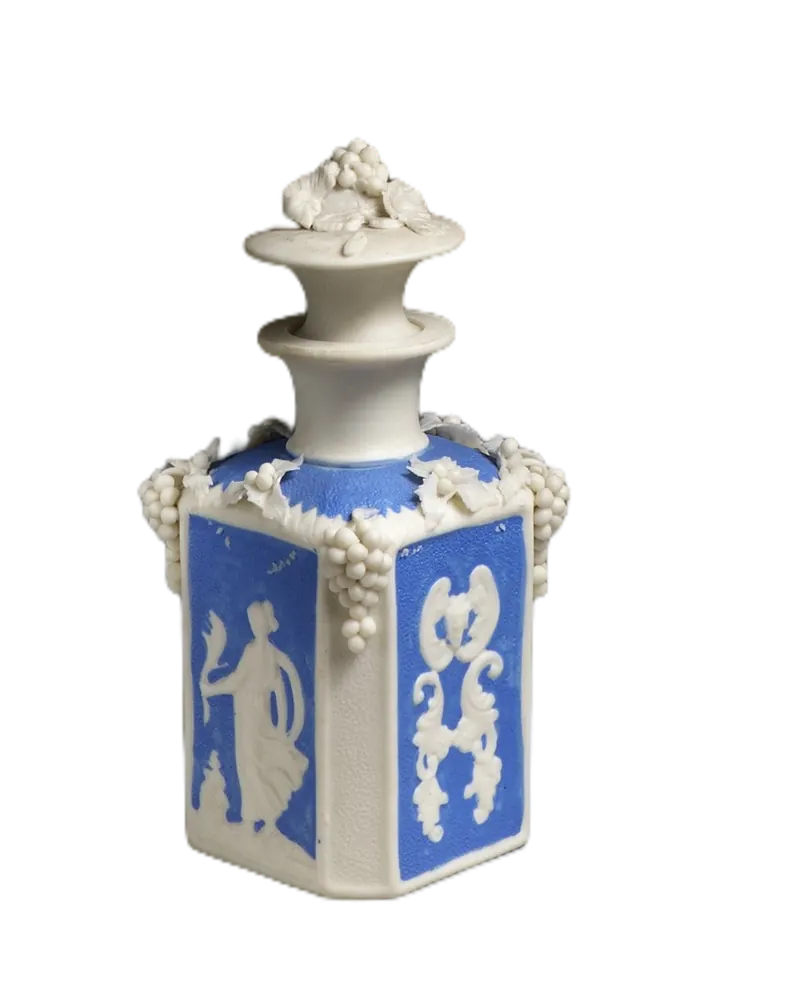
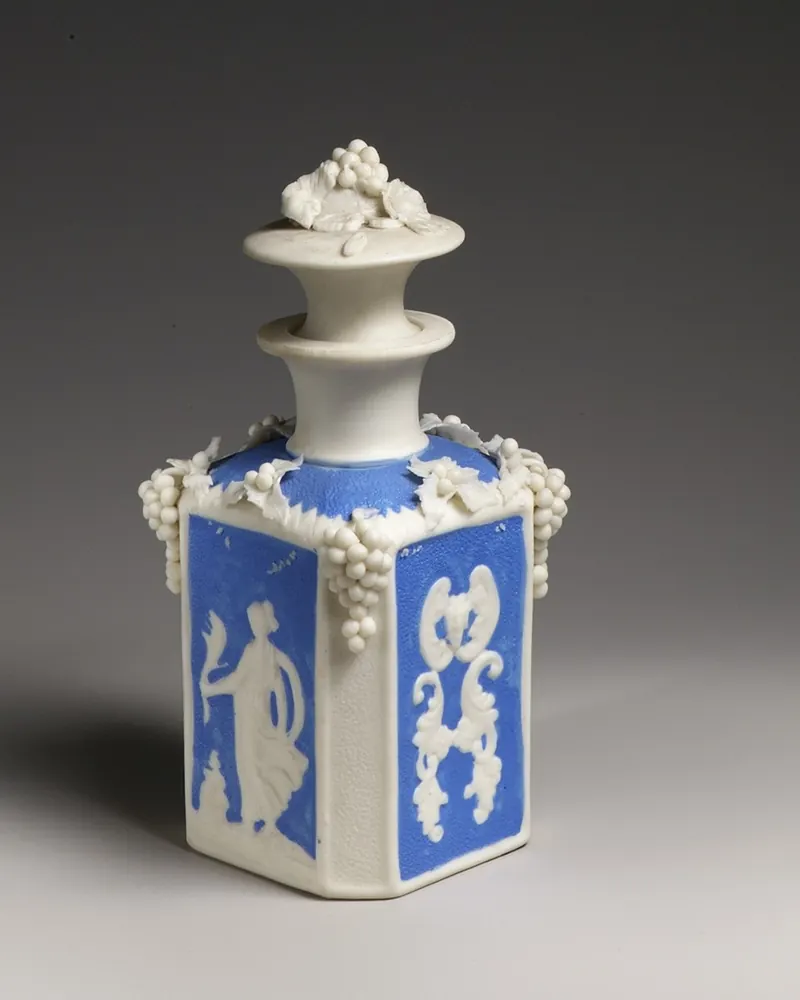
Every picture here was cut out by ChobiKit in a browser, the way yours will be. Drag the line to compare.




How to use it
Choose a photo of a person, a product or anything else.
The background comes off by itself. Then pick transparent, white, a colour or a gradient.
Crop it if you like, then download it.
One photo, any background
Delete the background from a photo in two steps: AI takes most of it away at once, then you erase what is left, or restore what went, with a brush. All in your browser.
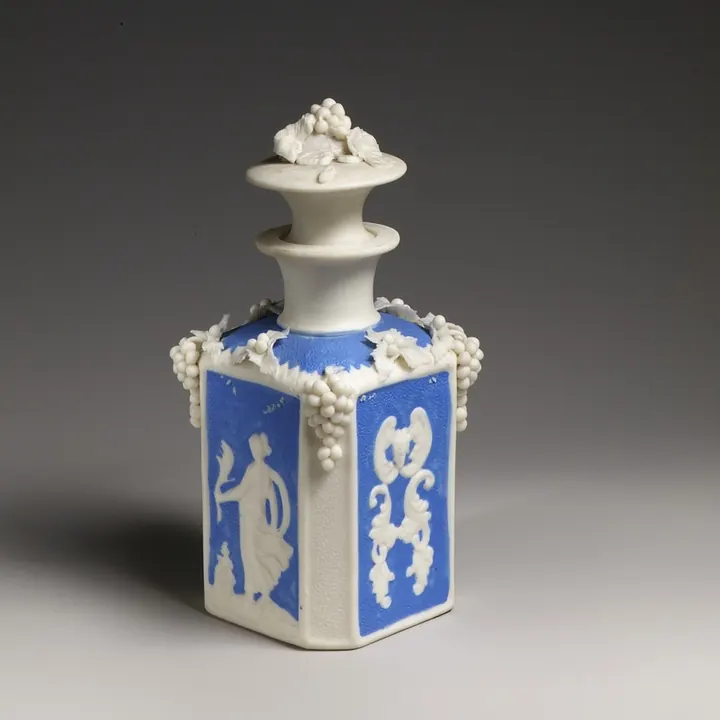
The photo as taken
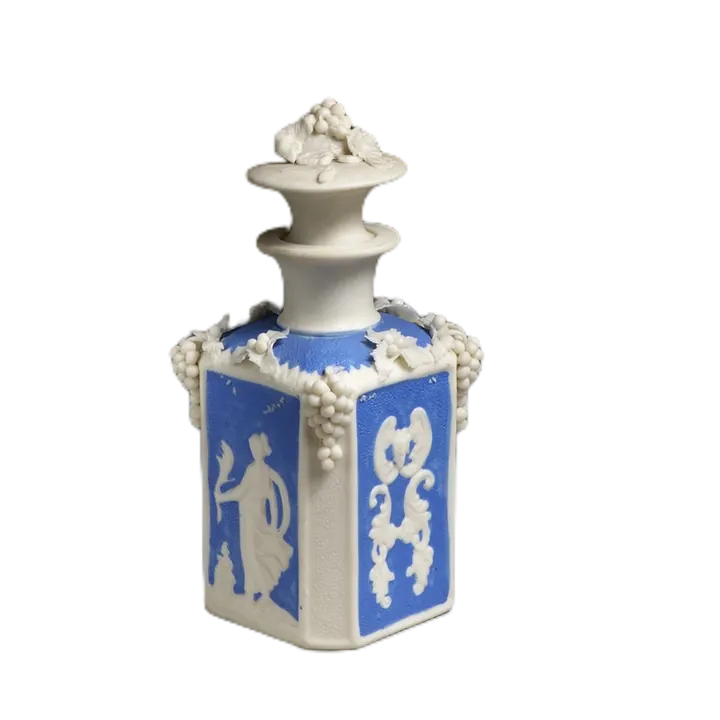
Transparent, for designs and slides
White, for forms and CVs
A colour or gradient, for profiles




How the eraser works
Most of it, at once
Choose a photo and the background comes off by itself. Person is chosen on this page; choose Object for products, pets and other things.
The Erase brush, ready
Once the cut-out is made, Erase is already picked: paint over any background that stayed. A tap paints one spot.
Restore what went
Pick Restore and paint over hair or an edge that was taken away: it comes back from your photo.
Brush tips
- With Keep edges on, the brush takes only colours like the one you start on, so the edge of what you keep stays sharp. Turn it off to erase everything under the brush.
- Make the brush smaller for hair and fine edges, and bigger for wide patches.
- Undo and Redo step through your strokes; Undo all goes back to the cut-out as it was made.
- Compare with the original shows your photo beside the result, so you can see what is left.
After erasing
- Download a transparent PNG, or put white, a colour or a gradient behind it.
- Crop the result to a square or another shape.
- Nothing is uploaded: the AI and the brush both run in your browser, free and with no watermark.
Frequently asked questions
How do I erase the background from a photo?
Choose a photo: most of the background comes off by itself. Erase is then already picked, so paint over what is left, and download.
How do I bring back a part that was erased?
Pick Restore and paint over it: your photo comes back where you paint. Undo takes back your last stroke.
What does Keep edges do?
It makes the brush take only colours like the one you start on. Erasing a patch of wall next to hair, the hair stays. Turn it off to erase everything under the brush.
Can I erase the background on a phone?
Yes. Paint with your finger, and make the brush smaller for fine edges. Everything runs on the phone itself.
Is the background eraser free?
Yes. There is no sign-up, no watermark and no limit on how many photos you do.
Is my photo uploaded?
No. The background is removed and erased in your browser, and nothing is sent to a server.