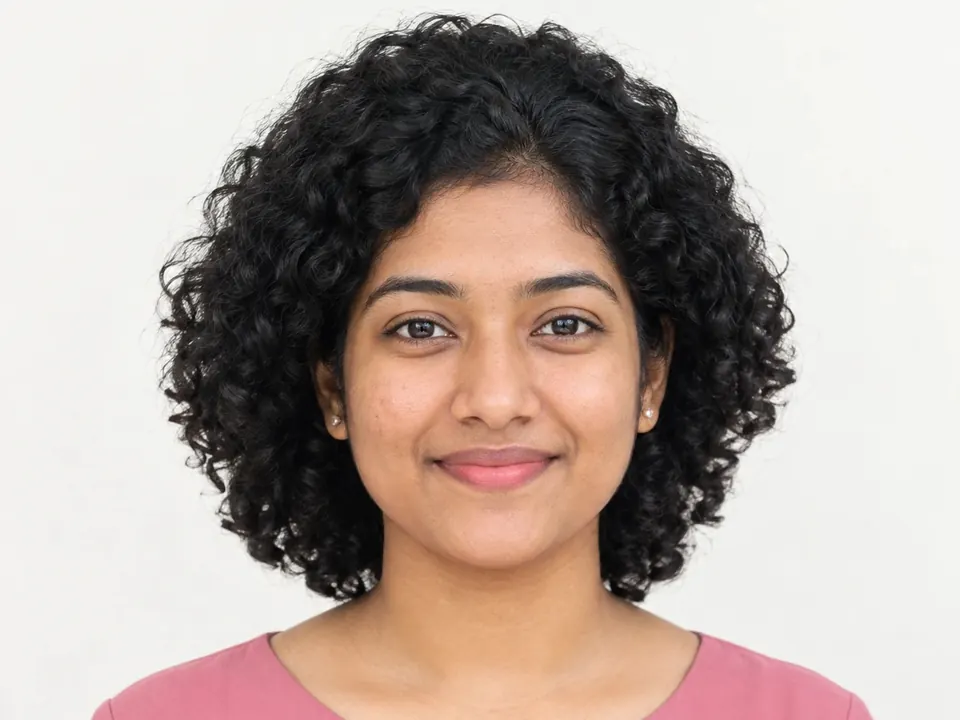

Change photo background colour
Automatic and free, and your photo never leaves your device.
JPG, PNG, WebP, HEIC or AVIF, up to 20 MB. You can choose up to 10 images at once.
Your image stays on your device.
Clean edges, made on your device
Every picture here was cut out by ChobiKit in a browser, the way yours will be. Drag the line to compare.



How to use it
Choose a photo of a person, a product or anything else.
The background comes off by itself. Then pick transparent, white, a colour or a gradient.
Crop it if you like, then download it.
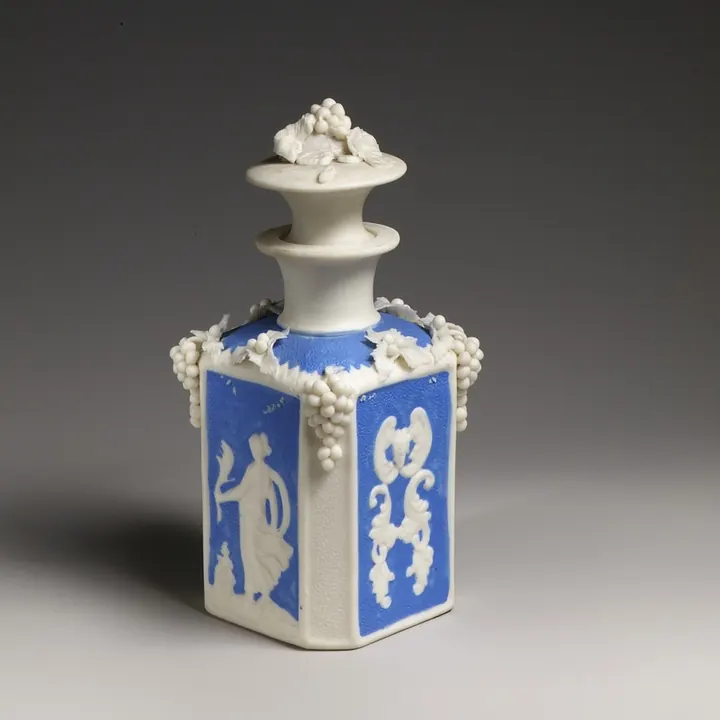
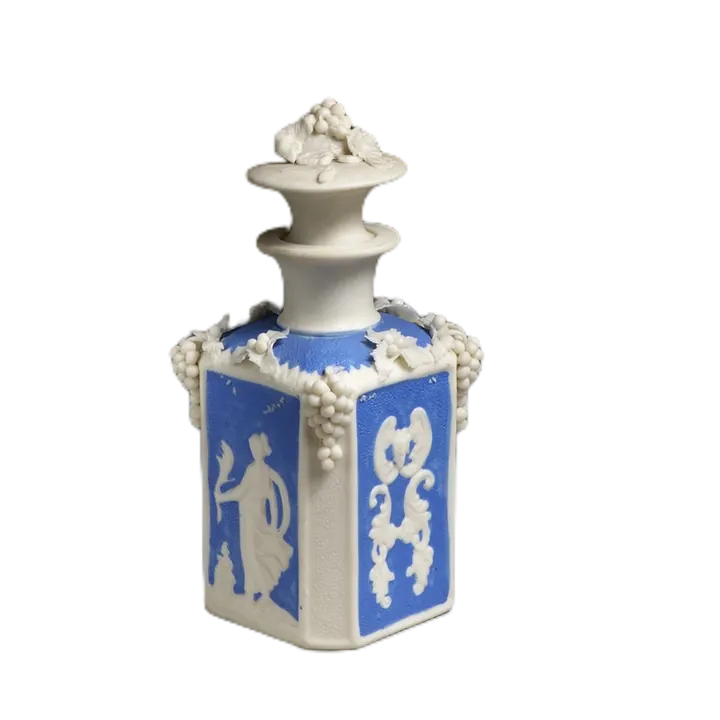
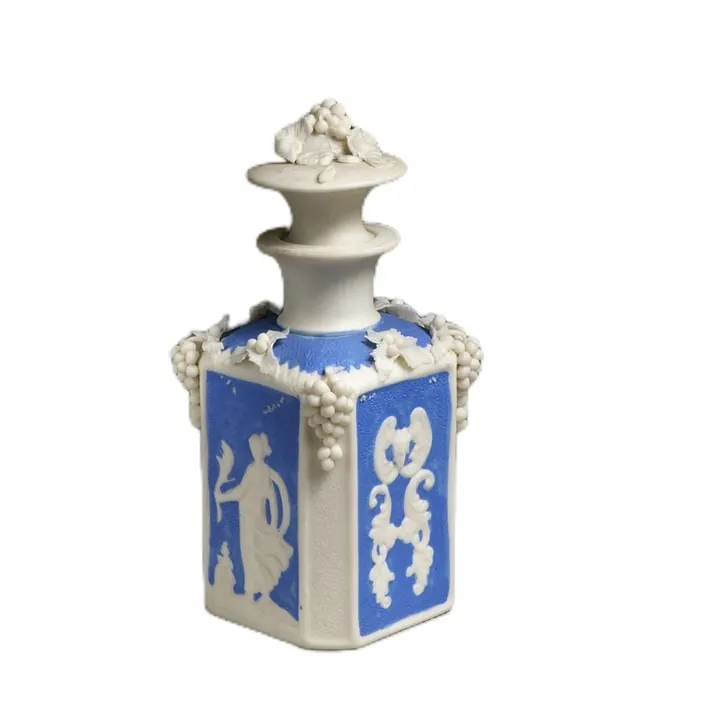
One photo, any background
Pick any colour, or a gradient, to go behind the person in your photo. It is all done on your device.
The photo as taken
Transparent, for designs and slides
White, for forms and CVs
A colour or gradient, for profiles
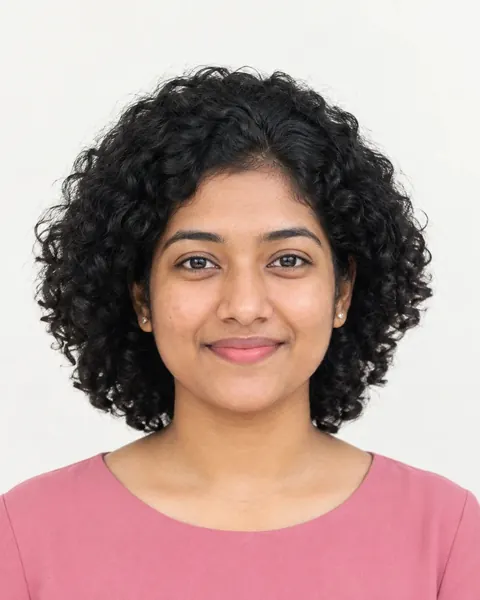

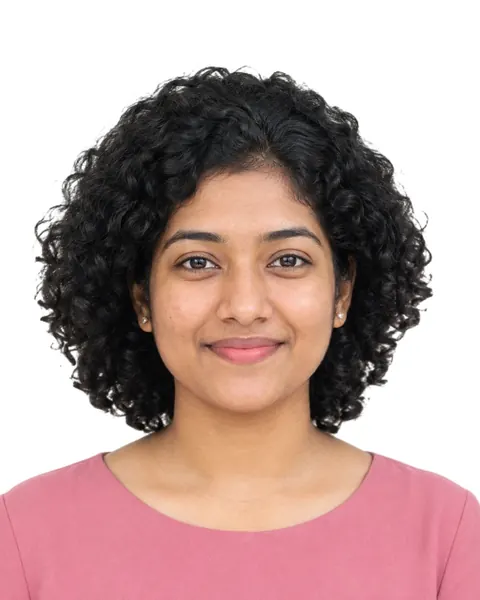

Colours and gradients to choose from
Eight plain colours, from white and light grey to navy and black, any colour you pick, and eight gradients from Sky to Night, light at the top like a studio backdrop.
The person is found once, so you can try colour after colour and see each at once.
Picking a colour that works
- Choose a colour that differs from the hair and clothes, so the edge reads clearly.
- Pale blues and greys suit portraits; strong colours suit posters and social posts.
- To match a brand colour, type its value into the colour picker, where your browser allows it.
After the new colour
- The result is saved as a JPG, the size of your photo.
- Crop it to a square for a profile picture, or to 16:9 for slides and 9:16 for stories.
- Want no colour at all? Choose Transparent for a PNG with a see-through background.
Frequently asked questions
How do I change the background colour of a photo?
Choose the photo: the background comes off by itself. This page opens on Background with the colour picker: pick a colour, a swatch or a gradient, then download.
Can I use an exact colour code?
Yes, where your browser's colour picker lets you type one. Many show a field for a hex value such as #dbe8f5.
Does changing the colour find the person again?
No. The person is found once; a new colour or gradient only redraws the picture, so it is instant.
Some background is still there. Can I fix it?
Yes. Open Cutout, pick Erase and paint over it. With Keep edges on, the brush takes only colours like the one you start on, so what you keep stays sharp. Restore brings back anything removed by mistake.
Is my photo uploaded?
No. The background is removed in your browser and nothing is sent to a server. It is free, with no sign-up and no watermark.